Best Deadlock Settings After City Never Sleeps: Names, Colors, Auto Fire and Share Codes
City Never Sleeps quietly rebuilt Deadlock's settings menu. There are new ways to clean up the screen, share your whole setup with a code and set things per hero. These are the options worth a look before your next ranked game.
Written byMax CalderDeadlock journalist
Published3 min read
Clean up names over health bars
Since the September 30 patch you can show the player name, the hero name or nothing above health bars. Names now fade out between 25 and 35 meters, sit dimmer than before, and the ultimate indicator is smaller. Showing hero names instead of player names is the quickest way to read a fight at a glance.
Enemy colors
Enemy UI color, which enemy trooper health bars now follow too.
Enemy damage color, yellow by default, for damage numbers you deal to enemies.
Enemy zipline color, which also tints enemy objectives on the minimap.
Color pickers now use a spectrum instead of RGB sliders, and reticle fill and border colors are customizable.
The new color picker for enemy UI.
Pick an enemy color that contrasts with the new map's palettes. With purple fog in the Sunken Plaza and neon in Times Square, a color that worked on the old map may now blend in.
Auto move, auto mantle and auto fire
Auto move: double-tap forward to keep walking; press forward or back to stop.
Auto mantle, both forwards and backwards.
Auto fire: press fire once to start and again to pause.
Reduced camera shake.
Subtitles with size, color, background, opacity, font, bold and all caps options.
These are accessibility features first, and they are allowed in every mode. Auto move is handy on long rotations, and reduced camera shake makes tracking easier for many players during big ultimates.
Share codes for settings and reticles
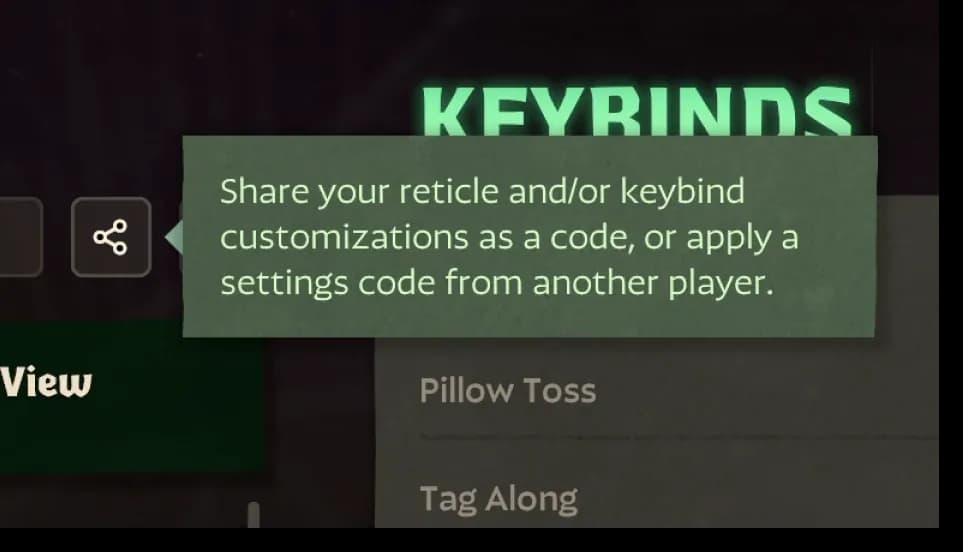
You can now export a settings code that carries your reticle, your keybinds or both, for all heroes, for your base setup or for one hero only. Importing shows a preview and can be undone. There is also a separate code for a single reticle, which makes copying a pro player's crosshair a ten-second job.
Per-hero settings
Hold TAB in the settings menu to highlight every option that can be set per hero, then use the hero selector in the top bar to switch. Different sensitivity or keybinds for a sniper and a melee brawler no longer means changing everything by hand between games.
Keybinds and input
Ability and item inputs now fire instantly when pressed.
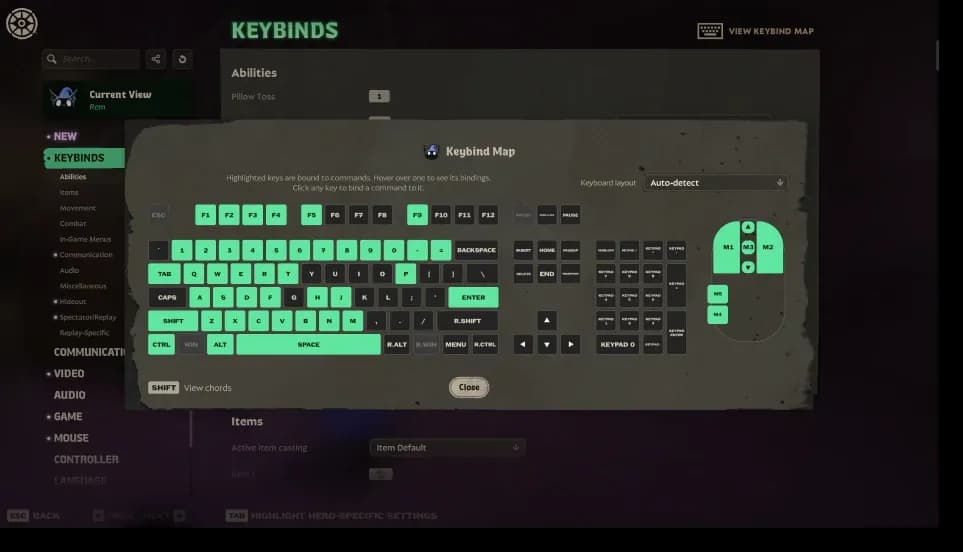
Bind by pressing a key, bind the scroll wheel, and view everything on a keybind map.
Avoid Hero can be rebound for mice without a middle button, and Down Dash became rebindable on September 30.
International keyboards are detected automatically, with IME support for Japanese, Chinese and Korean.
Settings are saved to the cloud, and several players sharing one PC can keep separate setups.
An inset HUD option helps on 21:9 monitors.
The new keybind map shows every binding at once.
Pings and the new HUD
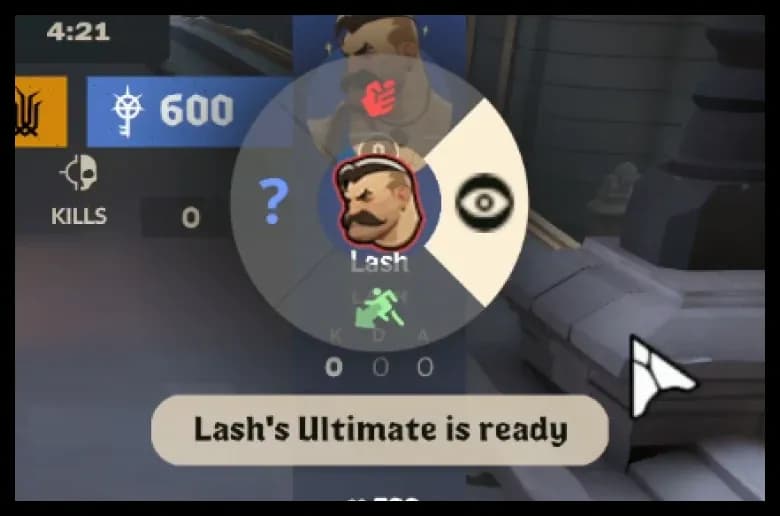
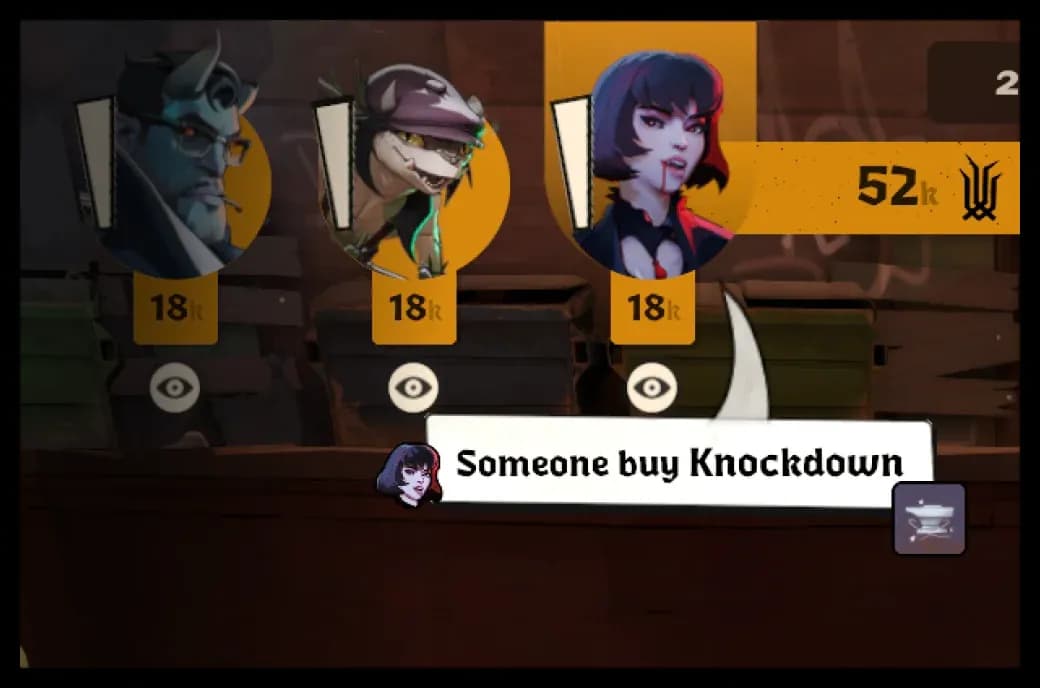
Ping wheels on the minimap and the top bar, with cursor hints showing what can be pinged.
Ping troopers, Haunts, ziplines, the Rift, bridge buffs and the shop, plus items you plan to buy or already own.
Ping enemy status: critical, dead or about to respawn, and your own ability cooldowns.
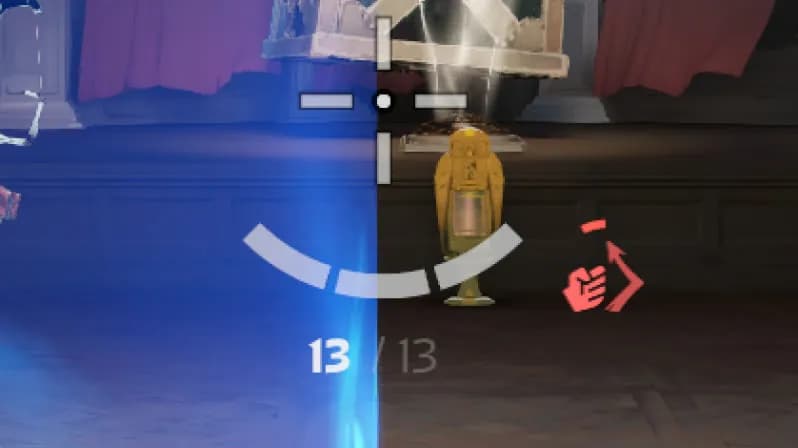
The parry cooldown now shows next to the reticle, and the top bar has a Midboss timer.
The event feed shows which item or ability landed the killing blow.
Top bar ping wheel
Item pings
Parry cooldown
New pings and HUD details.
The shop got its own upgrades too, including Popular Items built from live data and stat filters. For testing a new setup without risking a match, see our sandbox guide.
FAQ
FILE No. 01
In the settings, set the name shown above health bars to Hero name or None. The option was added on September 30, 2026.
FILE No. 02
Export a settings code with your reticle, keybinds or both, for all heroes, your base setup or one hero. Others can preview it and undo after importing. Single reticles have their own code.
FILE No. 03
Yes. Auto fire was added as an official accessibility option in City Never Sleeps: press fire to start and again to pause.
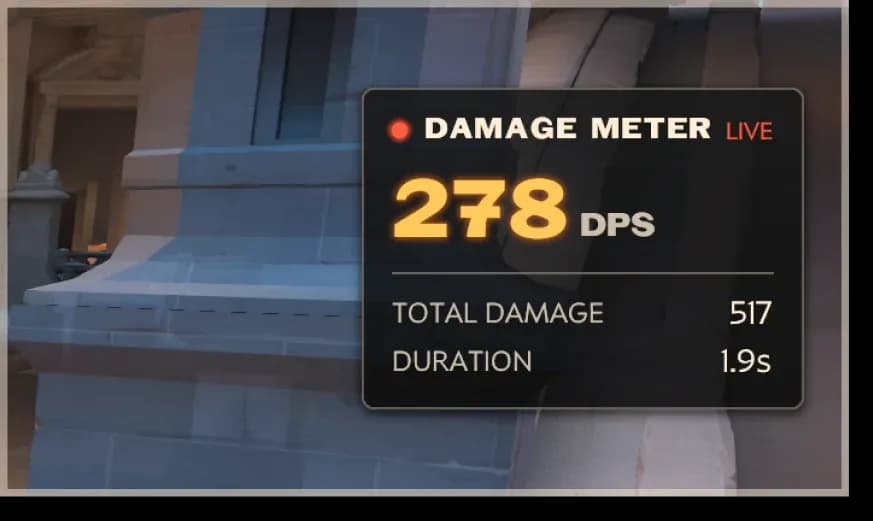
How to use Deadlock's sandbox tools from City Never Sleeps: the DPS meter, combat log, falloff guides, bot recording and free shop to test builds before ranked.
Everything in Deadlock's City Never Sleeps update: the reworked map, Haunts, Bell Tower, Sunken Plaza, The Broker, six new heroes and what it means for ranked.
Interactive Deadlock map for City Never Sleeps: every Haunt, shop and shortcut, the nine lane areas of York, Broadway and Greenwich and the four districts.